
Budget Template for Google Sheets
Google Sheets already has free budget templates, and you can build a better one in about 15 minutes. Here is the layout, the formulas and the setup steps, plus when an app saves you the typing.
Get started free➜ Download the app➜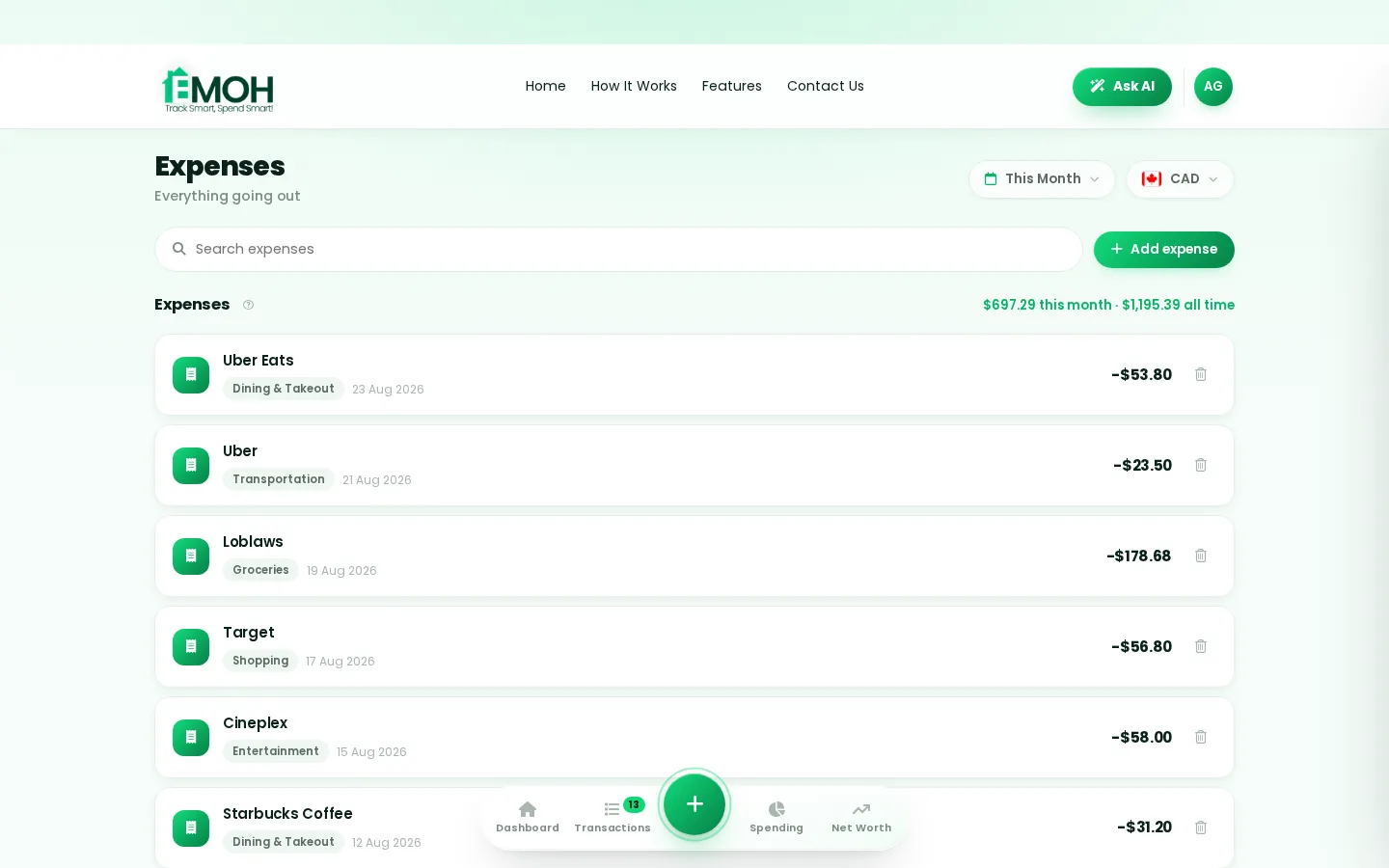
Is there a free Google Sheets budget template?
Yes. Google Sheets includes free Monthly budget and Annual budget templates in its template gallery, available from the Sheets home screen. You can also build your own budget template in Google Sheets in about 15 minutes using the layout and formulas below, or import a free Excel budget template into Sheets and edit it there.
Where to find Google's free budget template in Google Sheets
Google Sheets has a free budget template built in. Open sheets.google.com, expand the Template gallery at the top of the home screen, and look under the Personal section for Monthly budget and Annual budget. Choose one and Sheets makes your own copy.
The Monthly budget template has a summary tab and a transactions tab. You enter planned amounts and each transaction, and it compares planned with actual spending. The Annual budget template tracks income and expenses month by month across a year.
- Good for: getting started in minutes without building anything.
- Limits: the categories are generic, and you still type every transaction by hand.
- Tip: rename categories to match your real spending before you start, or the summary will not be useful.
How to build your own Google Sheets budget
Building your own Google Sheets budget takes about 15 minutes and fits your life better than a generic template. You need two tabs: one for the monthly plan and one for transactions. The plan tab pulls totals from the transactions tab automatically, so you only type each purchase once.
- Create a new blank spreadsheet and name it, for example, Budget 2026.
- Rename the first tab Plan and add a second tab called Transactions.
- On the Transactions tab, add four headers in row 1: Date, Description, Category, Amount.
- On the Plan tab, list your categories in column A, your planned amounts in column B, actual spending in column C and the difference in column D.
- Add the formulas from the next section so the actual column fills itself.
- Add a dropdown to the Category column on the Transactions tab (Insert › Dropdown) so category names always match the Plan tab.
- Use conditional formatting to turn the difference red when a category goes over budget.
Google Sheets budget layout and formulas
Here is a simple layout for the Plan tab. Copy it into your sheet and replace the categories and amounts with your own. Our list of monthly expenses helps if you are not sure which categories you need.
| A: Category | B: Planned | C: Actual | D: Left |
|---|---|---|---|
| Rent | 1,400 | =SUMIF(Transactions!C:C, A2, Transactions!D:D) | =B2-C2 |
| Groceries | 450 | copy formula down | copy formula down |
| Transport | 180 | copy formula down | copy formula down |
| Phone and internet | 120 | copy formula down | copy formula down |
| Eating out | 200 | copy formula down | copy formula down |
| Savings | 400 | copy formula down | copy formula down |
| Total | =SUM(B2:B7) | =SUM(C2:C7) | =SUM(D2:D7) |
SUMIF looks down the Category column of the Transactions tab, finds every row matching the category in column A and adds up the Amount column. Enter each purchase once on the Transactions tab and the Plan tab updates on its own.
Add an Income section above the categories with the same structure, then a final line for income minus total spending. If that number is zero, every dollar has a job, which is the idea behind zero-based budgeting.
Budgets that update themselves
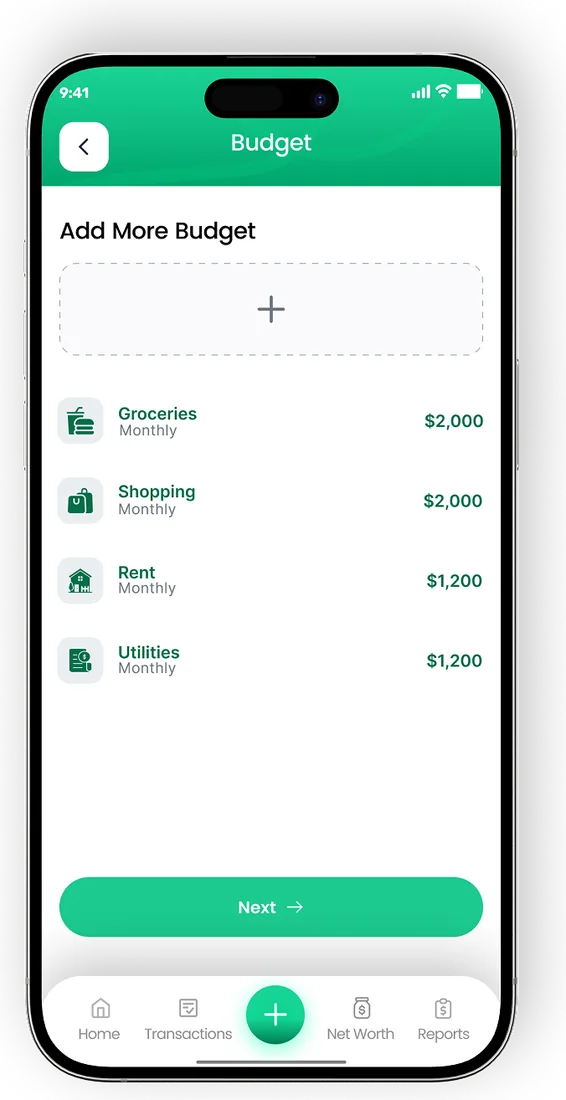
- Set monthly limits for every category
- See what is left to spend in real time
- Get a nudge before a category runs out


Which budgeting method should your template use?
A template is only a container. The method decides the numbers you put in it. Pick one before you fill in the Planned column.
- 50/30/20. Split take-home pay into needs, wants and savings. Add a column that tags each category as a need, want or saving. The 50/30/20 rule explains what goes where.
- Zero-based. Assign every dollar of income to a category until the total left is zero.
- Sinking funds. Add rows for irregular costs such as car repairs, gifts and annual fees, and save a little toward each monthly. See our guide to sinking funds.
- Envelope style. Give each category a fixed amount and stop spending when it runs out. The Left column acts as your envelope balance.
Google Sheets budget versus a budgeting app
A Google Sheets budget is free, flexible and easy to share with a partner. The trade-off is manual entry. Every coffee and grocery run needs typing, and most spreadsheet budgets fail because the typing stops, not because the formulas are wrong.
Our comparison of a budgeting app versus a spreadsheet goes deeper. In short: a spreadsheet suits people who enjoy building systems and review their spending weekly. An app suits people who want the tracking to happen with less effort.
| Google Sheets | Budgeting app | |
|---|---|---|
| Cost | Free | Often free to start, with paid tiers |
| Entering transactions | Typed by hand | Quick entry, and in some apps automatic bank sync |
| Custom layouts | Anything you can build | Set by the app |
| Alerts | None unless you script them | Overspend and bill alerts |
| Sharing | Share the file | Shared budgets with separate logins in some apps |
Use both: EMOH Pay with your spreadsheet
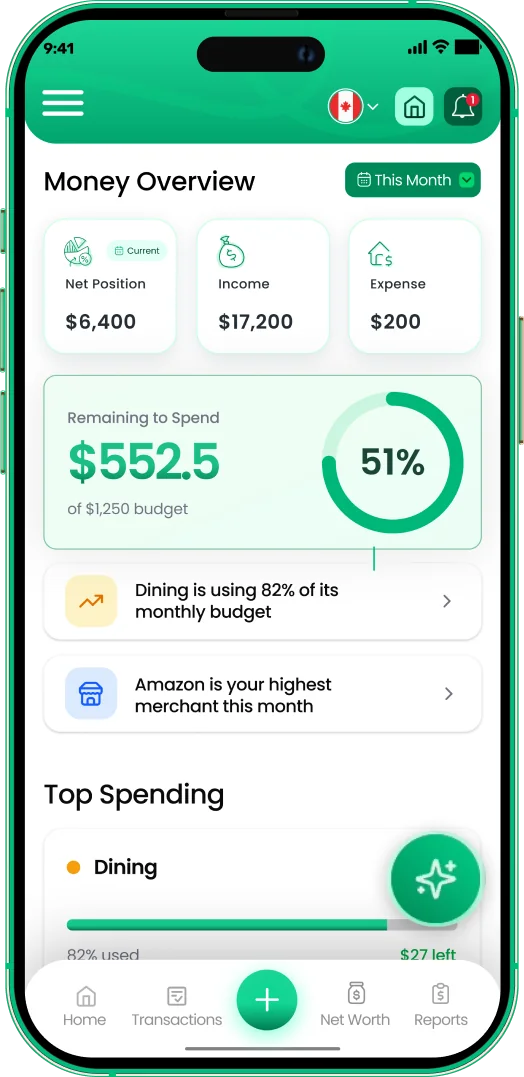
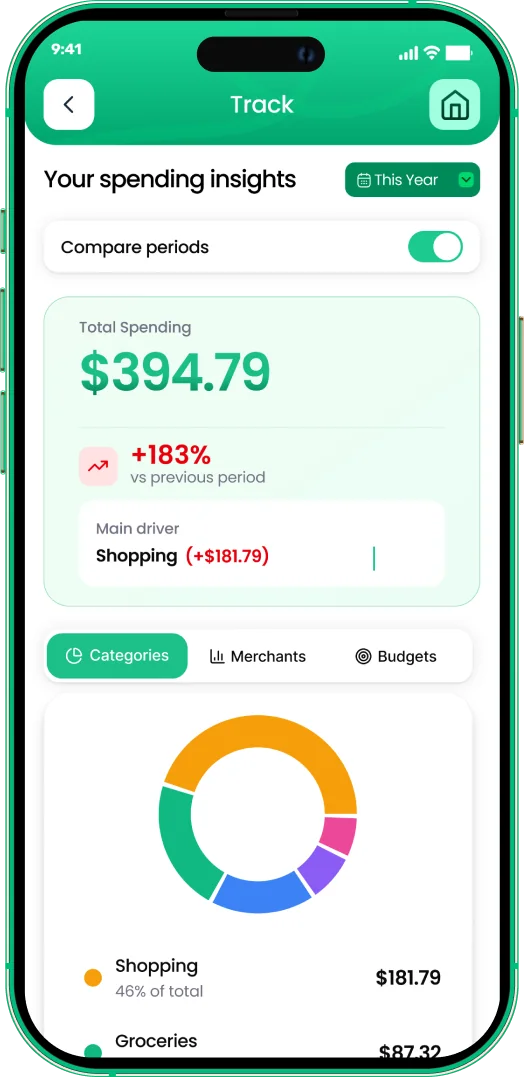
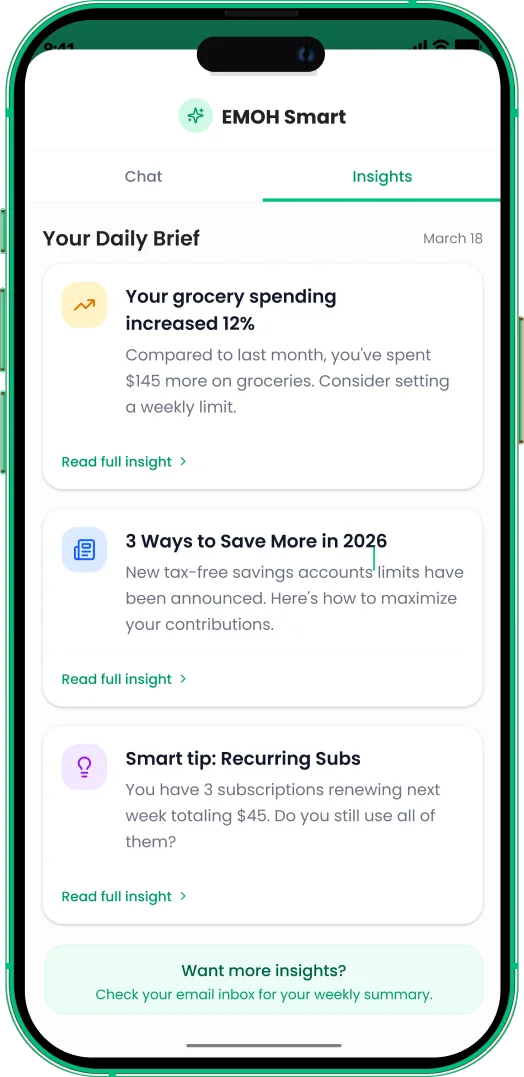
You do not have to choose. EMOH Pay handles the daily tracking on iPhone, Android and the web, with budgets, overspend alerts and receipts, and it exports your data to Excel or PDF. An Excel export opens in Google Sheets with File › Import, so you can keep building your own charts and summaries.
EMOH Pay is free to start. EMOH Pro, at $4.99 a month, adds automatic bank sync with Canadian banks through Plaid. See the full list of features, or grab our free budget template in Excel or CSV and open it in Sheets.
Plan your month in EMOH Pay

Put the numbers on autopilot
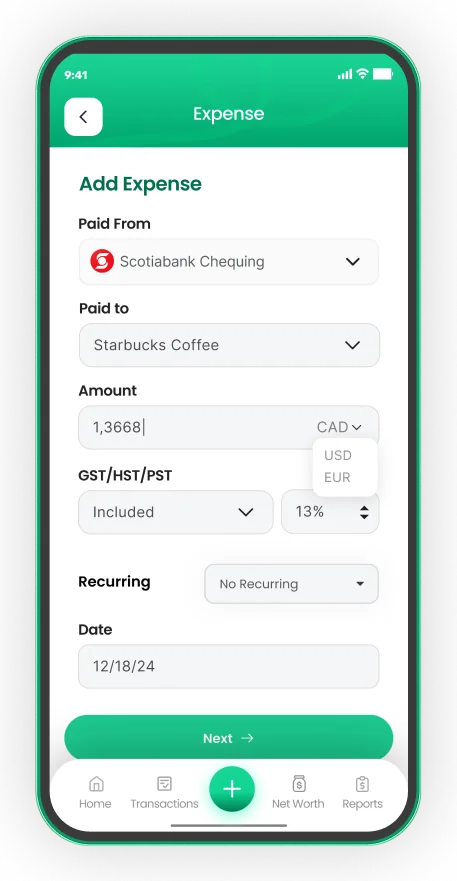
EMOH Pay tracks your spending, budgets and net worth on your phone and in the browser, always in sync. Free to start, made in Canada.
Get started free➜Budget Template for Google Sheets: frequently asked questions
Does Google Sheets have a budget template?
Yes. Google Sheets includes Monthly budget and Annual budget templates in its template gallery. They are free with any Google account.
Can I use a Google Sheets budget on my phone?
Yes. The Google Sheets app for iPhone and Android opens the same file, so you can add transactions on the go. Entering data on a small screen is slower than on a computer, though.
Can I import an Excel budget template into Google Sheets?
Yes. In Google Sheets, choose File › Import and upload the Excel or CSV file. Formulas such as SUM and SUMIF carry over.
Can my partner and I share a Google Sheets budget?
Yes. Use the Share button to give your partner edit access. You will both see changes as they are made.
Is a Google Sheets budget secure?
The file sits in your Google account and is protected by your Google sign-in. Turn on two-step verification, and avoid putting full account or card numbers in the sheet.
Sources and further reading
Related guides and tools
Download a free monthly budget template (CSV — opens in Excel or Google Sheets) with Canadian categories and the 50/30/20…
Budgeting App vs Spreadsheet: Which Is Better in 2026?Spreadsheets are flexible but fragile: manual entry, broken formulas, no reminders, one device. EMOH Pay automates the…
EMOH Pay Features — Budgets, Tracking, AI & MoreAll EMOH Pay features: expense tracking, budgets, net worth, Ask AI, family sharing, GST/HST, multi-currency and more. Free…
The 50/30/20 Rule ExplainedThe 50/30/20 rule splits take-home pay into 50% needs, 30% wants and 20% savings. See what counts in each bucket, worked…
Monthly Expenses Checklist: The Full List of Monthly ExpensesA complete list of monthly expenses to build your budget: housing, bills, food, transport, debt, savings and the irregular…
50/30/20 Budget CalculatorThe 50/30/20 rule splits after-tax income: 50% to needs, 30% to wants, 20% to savings. Enter your monthly take-home pay to…
Start free today
Free on iPhone, Android and the web. Upgrade to EMOH Pro anytime for bank sync and advanced AI.
Download for iOS➜ Get it on Android➜