
Multi-Currency Budgeting: A Complete Guide
Earning in one currency and spending in another makes every budget harder. This guide shows a simple, repeatable system for budgeting in multiple currencies.
Get started free➜ Download the app➜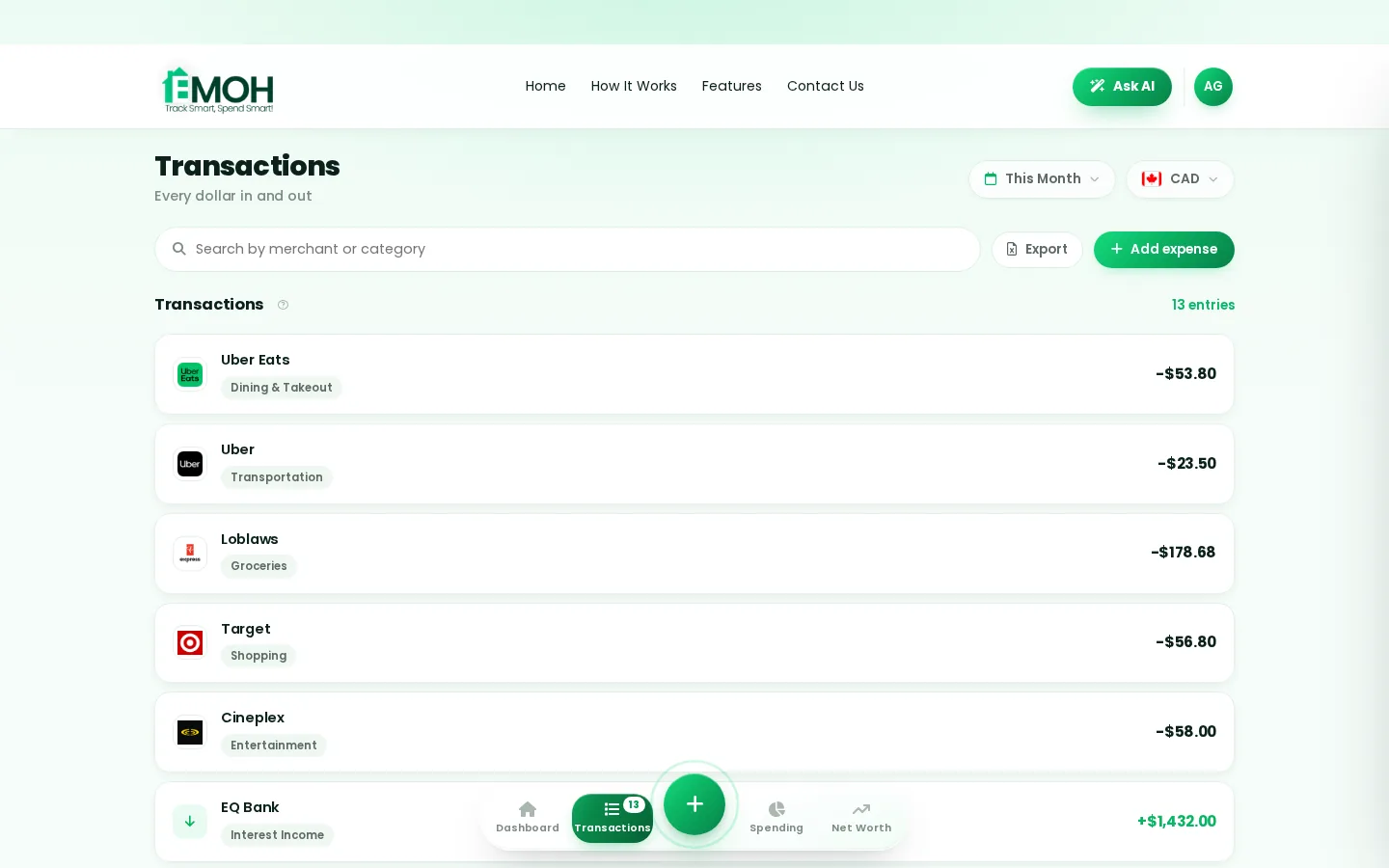
How do I budget with money in two currencies?
To build a multi currency budget, choose one home currency for planning, convert every income and expense into it using a consistent rate, and add a small buffer for exchange-rate swings and fees. Track each currency's balance separately, but set limits and goals in your home currency so you always see one clear total.
Why a multi currency budget is different
A normal budget has one unknown: how much you will spend. A multi currency budget has two, because the exchange rate changes the value of every dollar, rupee or euro between the day you plan and the day you pay. A plan that balanced on the first of the month can be short by the thirtieth without a single extra purchase.
People who need this include newcomers supporting family abroad, snowbirds with US dollar costs, freelancers paid by foreign clients, students funded from home, and anyone who holds savings in more than one country. The goal is the same for all of them: one clear view of what you can afford.
Step 1: choose your home currency
Your home currency is the one most of your income arrives in and most of your fixed bills are paid in. For someone living in Canada that is usually the Canadian dollar, even if a large share of spending goes abroad. Setting budgets and goals in one currency lets you compare categories fairly and see a single total for the month.
If your income and costs are split close to evenly, pick the currency you expect to live in long term. That keeps your savings goals and net worth measured in the money you will eventually spend.
Step 2: pick a conversion method and stick to it
Consistency matters more than precision. Choose one of the methods below and use it every month, so your categories stay comparable.
| Method | How it works | Best for |
|---|---|---|
| Actual rate | Record what your bank or card actually charged in your home currency | Card purchases and transfers where the final amount is known |
| Daily reference rate | Convert using the published rate on the day, such as the Bank of Canada daily rate for CAD | Cash spending and foreign accounts you check often |
| Monthly planning rate | Fix one rate at the start of the month and use it for all planning | Setting budgets for regular foreign costs |
| Automatic conversion | Let your budgeting app convert each transaction into your home currency | People with frequent spending in several currencies |
A practical mix is a monthly planning rate for setting budgets and the actual rate for recording what you really spent. The gap between the two shows how much exchange movements cost or saved you that month. For tax purposes, the CRA has its own rules on which rates to use, so keep your budget method separate from your tax records.
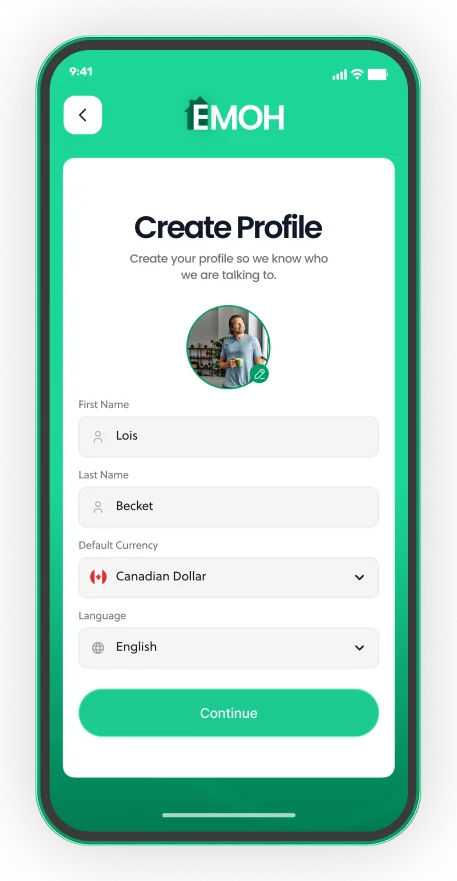
Your home currency, any spending currency
- 148 currencies with automatic conversion
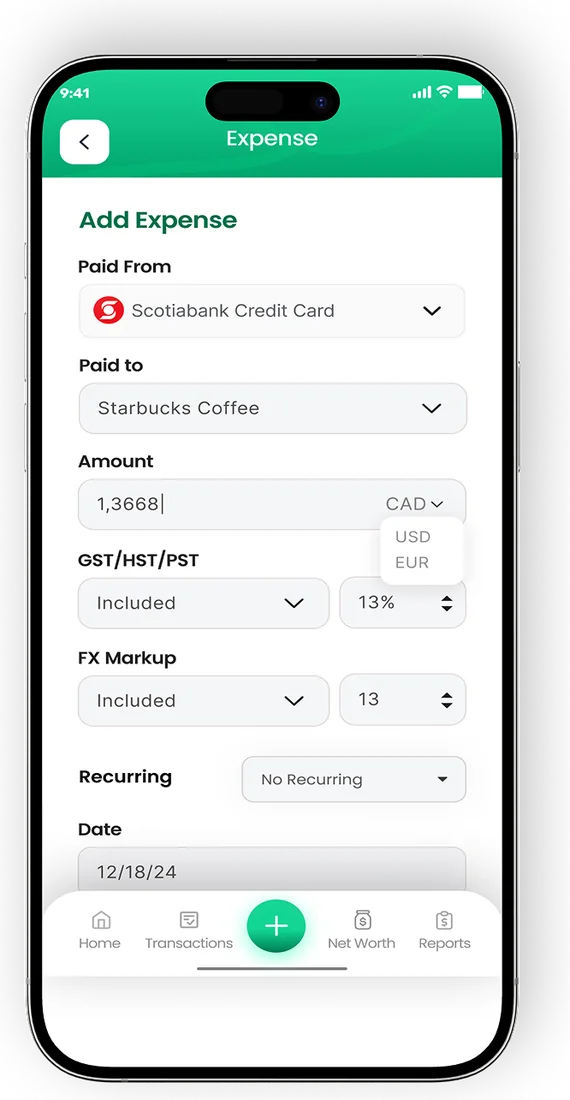
- Record FX markup on card purchases
- Phone and web always in sync


Step 3: plan for fees and exchange-rate swings
Exchange costs hide in three places: an upfront transfer fee, a margin built into the exchange rate, and foreign transaction fees on cards. Many Canadian credit cards add a foreign transaction fee of about 2.5% on purchases in other currencies, on top of the network exchange rate.
Add a buffer line to any category paid in a foreign currency. A few percent covers normal monthly movement for major currencies; use a larger buffer for currencies that have moved sharply in the past year. If you do not need it, move the leftover into savings at month end.
- Compare the total cost, not just the advertised fee. Our guide to remittance fees shows how to spot the exchange margin.
- Batch transfers where you can. One larger transfer often costs less than several small ones.
- Use a card without foreign transaction fees if you spend abroad often.
- Check the mid-market rate on the currency converter before you send, so you know what a fair rate looks like.
A worked example: budgeting in multiple currencies
Take someone in Toronto with $5,000 CAD of monthly take-home pay. They pay for a US software subscription, send money to parents in India every month, and keep a small euro balance from a past trip. Their monthly plan, set in Canadian dollars with a buffer on foreign costs, looks like this:
| Category | Paid in | Budget (CAD) | Buffer (CAD) |
|---|---|---|---|
| Rent, utilities, groceries, transit | CAD | $2,900 | none |
| Software subscription | USD | $30 | $2 |
| Support for parents | INR | $600 | $25 |
| Travel fund | EUR | $150 | $5 |
| Savings and TFSA | CAD | $800 | none |
| Everything else | CAD | $488 | none |
Every line is planned in Canadian dollars, so budgets and buffers together add up to exactly $5,000. Only the foreign lines carry a buffer. At month end, the actual converted amounts replace the planned ones and any unused buffer goes to savings. Our separate guide on budgeting for money you send home goes deeper on the remittance line.
Tools for managing a multi currency budget
A spreadsheet can handle two currencies if you add a rate column and update it monthly. It gets harder with three or more currencies, several accounts and a partner who also spends.
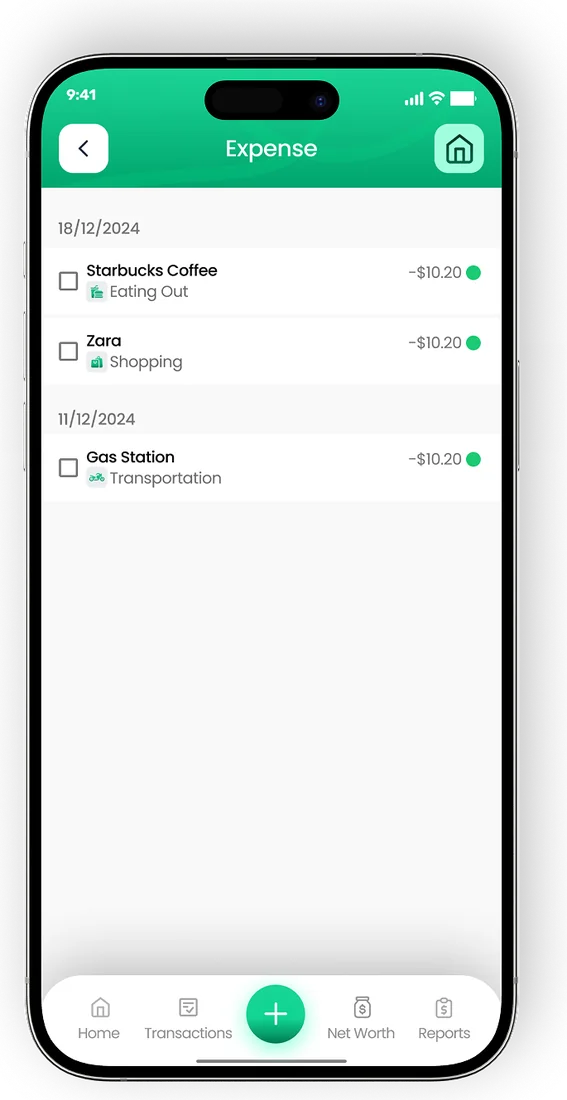
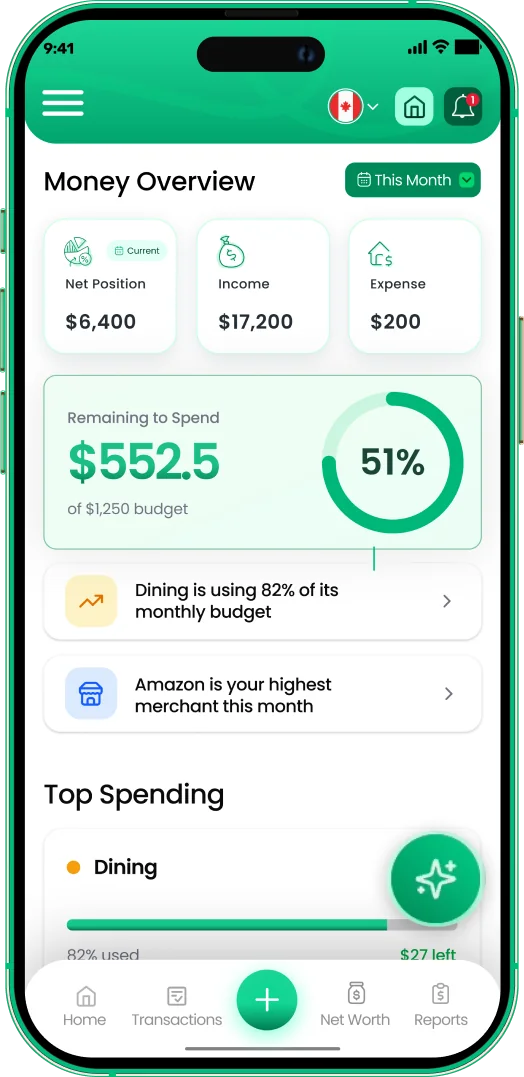
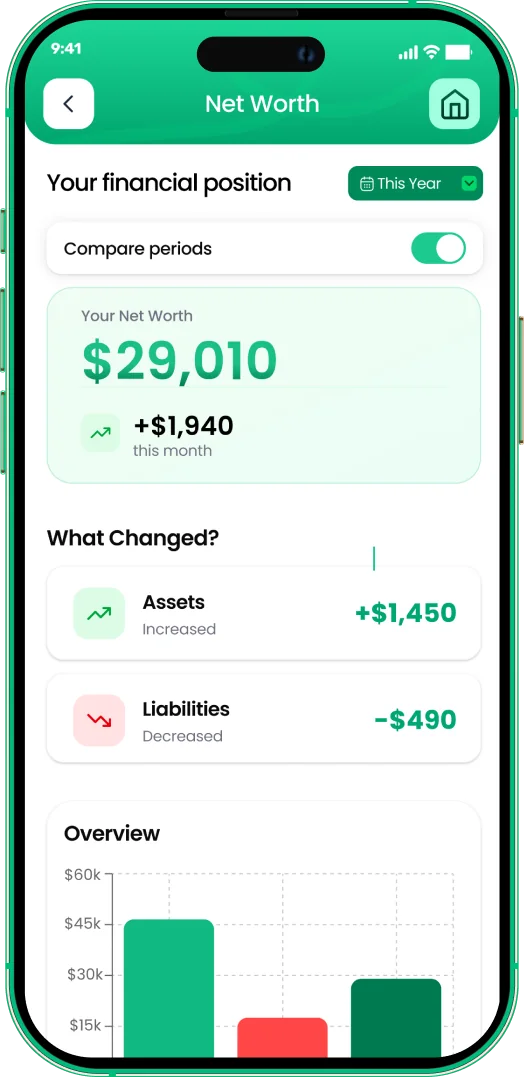
EMOH Pay supports 148 currencies with automatic conversion into your home currency, so every transaction lands in one budget, one net worth figure and one set of reports. It runs on iPhone, Android and the web, and family sharing lets a partner add spending in any currency. The multi-currency budget app page explains the feature in detail. If you live abroad, our expat money guide covers the wider picture of banking and tax across countries.
Every currency in one app

Put the numbers on autopilot
EMOH Pay tracks your spending, budgets and net worth on your phone and in the browser, always in sync. Free to start, made in Canada.
Get started free➜Multi-Currency Budgeting: A Complete Guide: frequently asked questions
Should I keep separate budgets for each currency?
Track separate balances for each currency, but set one budget in your home currency. Separate budgets make it hard to see whether you can actually afford the month as a whole.
Which exchange rate should I use in my budget?
Use one method consistently. Many people plan with a fixed monthly rate and record the actual amount charged. For Canadian dollar reference rates, the Bank of Canada publishes daily figures.
How big should my exchange-rate buffer be?
A few percent of each foreign-currency category covers normal movement for major currencies. Increase it for currencies that have been volatile, and review it every few months.
Do I need to report foreign accounts in Canada?
Canadian residents report foreign income on their tax return, and those whose foreign property cost more than $100,000 in total at any time in the year must file Form T1135. Check the CRA's guidance for your situation.
Can EMOH Pay sync foreign bank accounts?
Automatic bank sync in EMOH Pay is confirmed for Canadian banks only. You can still add foreign accounts and enter transactions in any of 148 currencies, and the app converts them for you.
Sources and further reading
Related guides and tools
EMOH Pay supports 148 currencies with live conversion — perfect for expats, travellers, newcomers and anyone whose money…
Currency ConverterQuick conversion between major currencies (indicative 2026 rates — live rates inside the EMOH Pay app, with 148 currencies…
Expat Money GuideA practical guide to expat finances: tax residency, banking in two countries, currency, emergency funds and a monthly money…
How to Budget When Sending Money HomeBuild a remittance budget that supports family without draining your own savings: how much money to send home, handling…
Remittance Fees ExplainedRemittance fees explained simply: upfront fees, exchange margins and receiving charges, with a worked example and the…
Travel Budget CalculatorUse this free travel budget calculator to total flights, accommodation, food and activities for any trip, with a 10% buffer…
Start free today
Free on iPhone, Android and the web. Upgrade to EMOH Pro anytime for bank sync and advanced AI.
Download for iOS➜ Get it on Android➜