
Budgeting App for Mac
You can budget on a Mac with a native app, a spreadsheet in Numbers or a web app that syncs with your iPhone. Here is how the options compare and how to set EMOH Pay up on macOS in two minutes.
Get started free➜ Download the app➜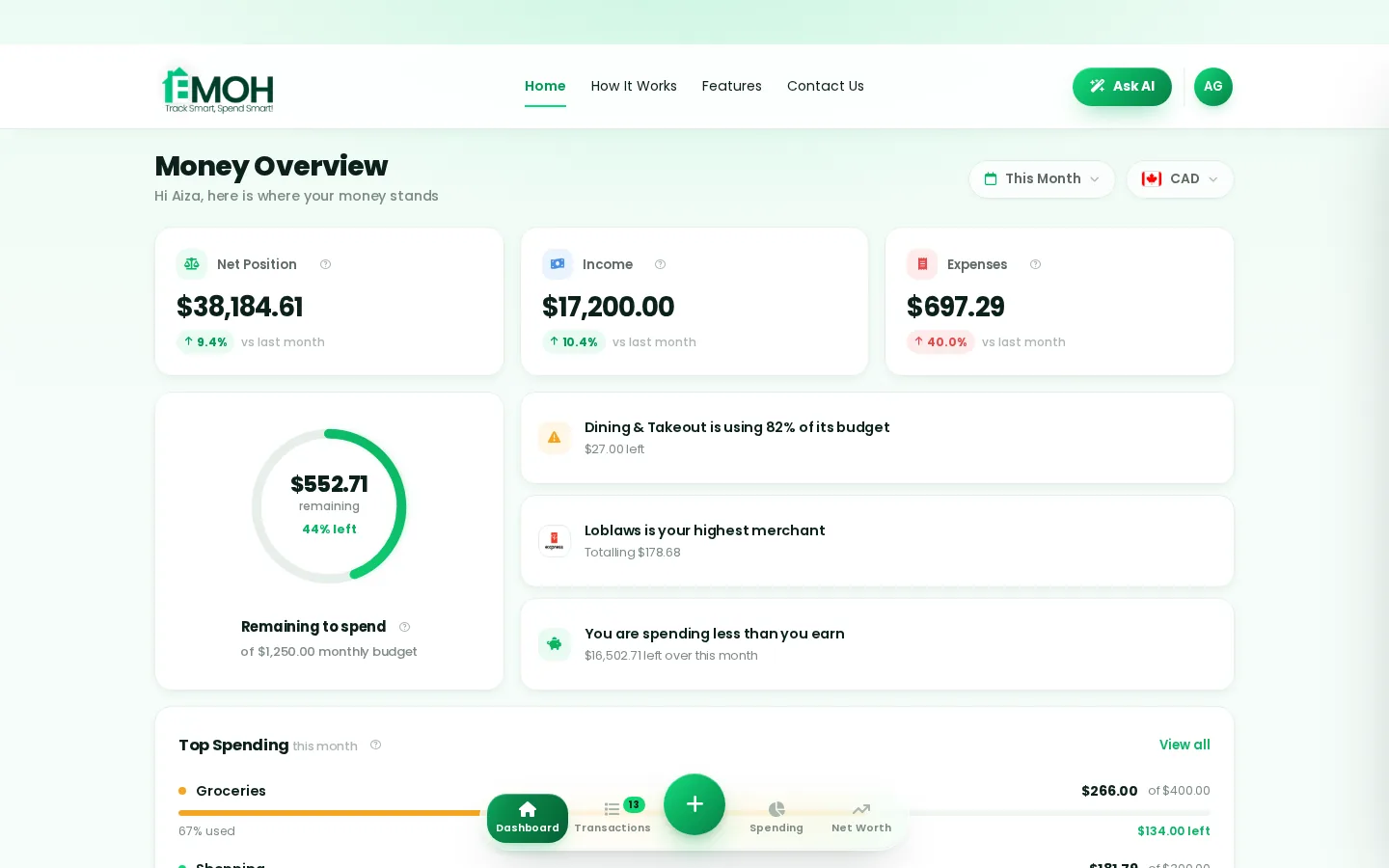
What is a good budgeting app for Mac?
A good budgeting app for Mac syncs with your iPhone, is easy to read on a large screen and keeps your data secure. You can choose a native Mac app, a spreadsheet in Numbers or a browser-based app. EMOH Pay runs in Safari or any Mac browser, stays in sync with its iPhone app and is free to start.
Your options for a budgeting app for Mac
There are three ways to budget on a Mac, and each suits a different kind of person. A native Mac app is installed on your computer. A web app runs in your browser and syncs with your phone. A spreadsheet in Numbers or Excel gives you full control but no automation.
Many Mac owners also use an iPhone, so the most important question is often whether the Mac and phone stay in sync. A budget you can only update at your desk tends to fall behind.
| Option | Strengths | Trade-offs |
|---|---|---|
| Native Mac app | Feels at home on macOS, can work offline | Some are Mac-only or need a separate licence per device |
| Web app in Safari | Nothing to install, same account on phone and Mac, always current | Needs an internet connection |
| Numbers spreadsheet | Free, fully custom | Every transaction typed by hand, no alerts or phone sync by default |
What is the best budget app for Mac?
The best budget app for Mac is the one that matches your devices and habits. If you budget mostly on your iPhone and review on your Mac, pick an app with a strong phone app and a web or Mac version. If you want a desktop-only ledger, a native Mac app may suit you better.
At the time of writing (September 2026), well-known options include Quicken, which sells desktop software for Mac; Banktivity, a Mac-focused personal finance app; Moneydance, which runs on Mac, Windows and Linux; and Copilot Money, which offers a Mac app alongside its iPhone app. Features, pricing and bank support change, so check each app's own site. Our Quicken alternative and Copilot Money alternative pages compare them with EMOH Pay for Canadians.
- iPhone sync. Your budget should update on both devices without manual exports.
- Readable on a big screen. Reports and category views should use the extra space well.
- Bank support where you live. Automatic sync coverage varies by country and bank.
- Privacy. Look for encryption, read-only bank access and a clear policy on data sales.
How to use EMOH Pay on a Mac
EMOH Pay does not have a native Mac app. Instead, its web app runs in any Mac browser, with the same account and data as the iPhone and Android apps. Changes you make on your Mac appear on your phone straight away, and the reverse.
On macOS Sonoma or later, Safari can add a website to your Dock so it opens in its own window like an app. That makes EMOH Pay feel like a Mac app without an install.
- Open Safari and go to emohpay.com, then sign in or create a free account.
- In Safari's menu bar, choose File › Add to Dock.
- Name it EMOH Pay and click Add. It now opens from the Dock in its own window.
- Install the iPhone app from the App Store and sign in with the same account to keep both in sync.
- Set up your budgets on the Mac, where the larger screen makes categories easier to arrange.
Chrome and Edge on Mac can also install a website as an app from their menus. Any modern browser works.
Set up in about five minutes
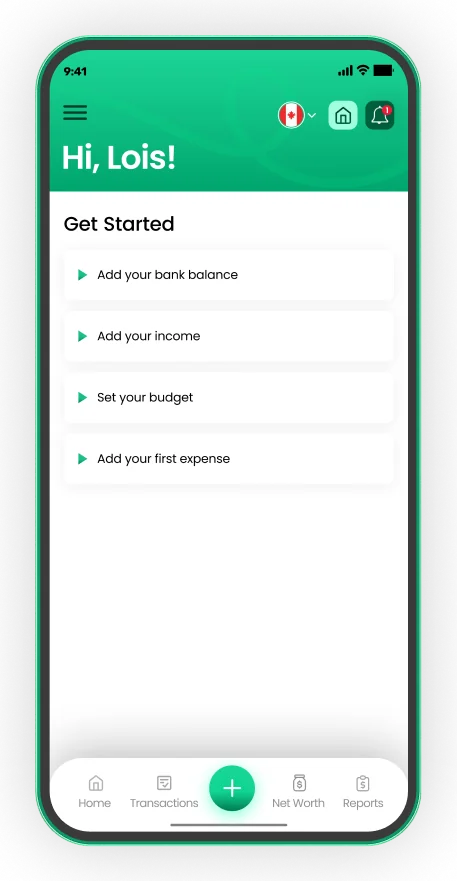
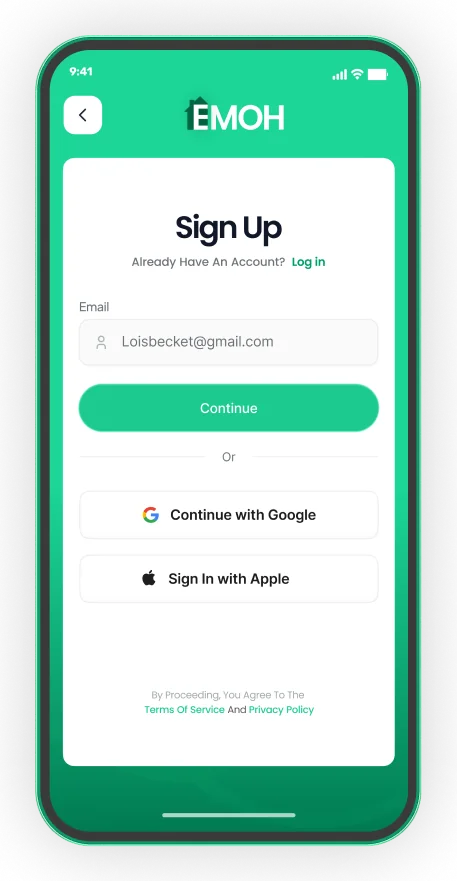
- Sign up with email, Google or Apple
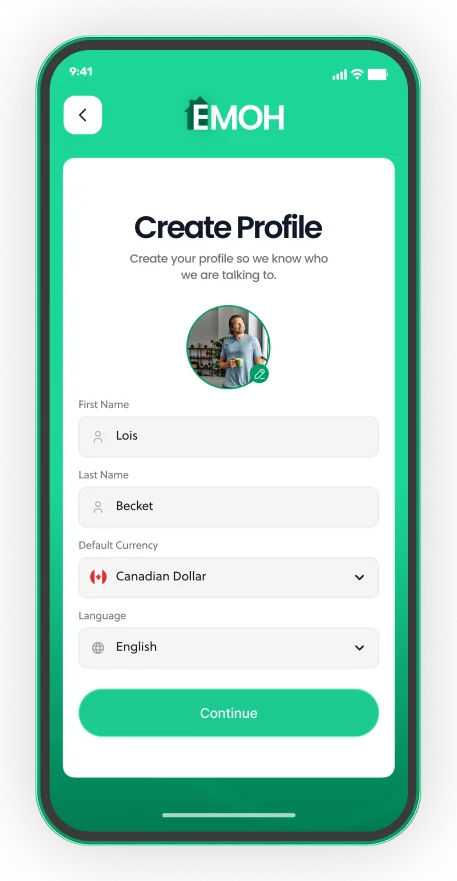
- Pick your default currency and language
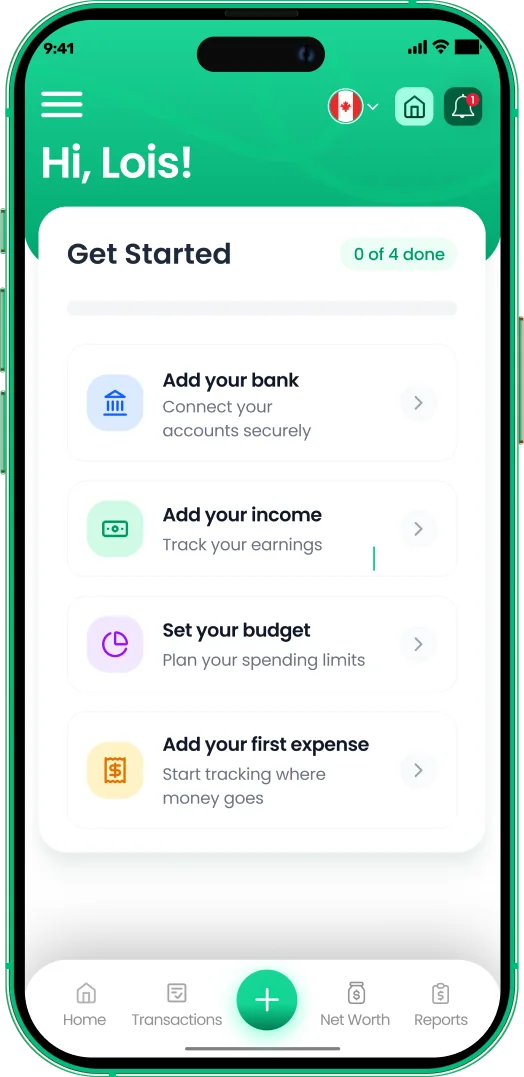
- Add income, a budget and your first expense


Why budget on a Mac as well as your phone?
Your phone is best for logging a purchase the moment it happens. Your Mac is better for the monthly review: comparing categories, adjusting budgets, reading reports and planning goals. Using both keeps the habit going and makes the thinking easier.
A larger screen helps with the tasks people tend to skip on a phone, such as recategorizing a month of transactions, setting up sinking funds or preparing GST/HST records for tax time.
Monthly review on the Mac
Once a month, open your budget on the Mac, check each category against its limit, move money between categories and set next month's plan. It takes about 20 minutes.
Daily logging on the iPhone
Add expenses as they happen, snap receipts and let alerts warn you before a category runs out.
Numbers spreadsheet versus a budgeting app on Mac
Numbers comes free with every Mac and includes a personal budget template. It is a fine choice if you enjoy spreadsheets and review your spending every week. The drawback is that nothing happens automatically: no alerts, no bank sync and no easy logging from your phone.
Our comparison of a budgeting app versus a spreadsheet covers the trade-offs in detail. Many people start in a spreadsheet and move to an app once manual entry becomes a chore.
EMOH Pay features on your Mac
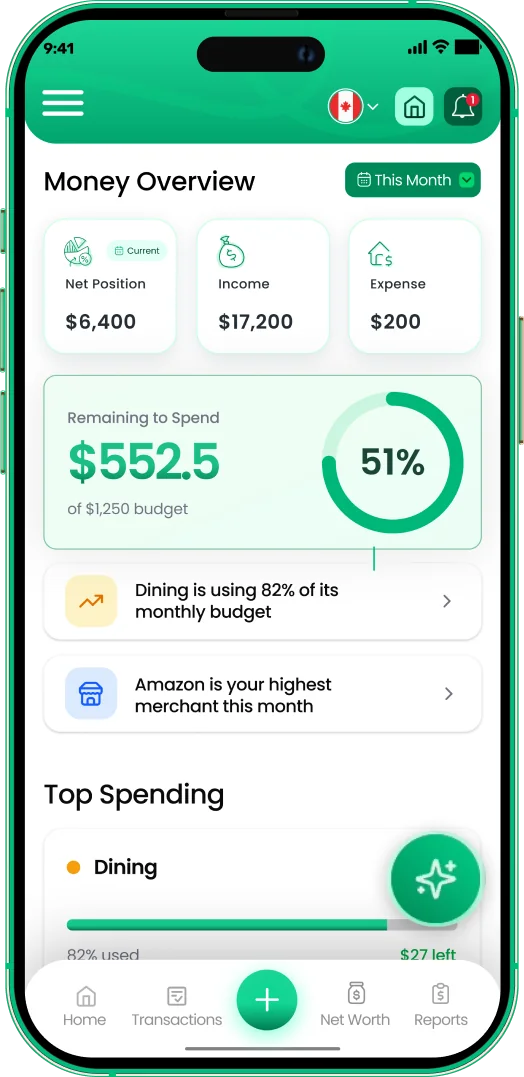
Everything in EMOH Pay works in the browser on your Mac: expense tracking, budgets with overspend alerts, bill tracking, savings goals, net worth, receipts, reports, Ask AI, family sharing with separate logins, GST/HST tracking and PDF or Excel exports. It supports 148 currencies with automatic conversion.
EMOH Pay is free to start. EMOH Pro costs $4.99 a month and adds automatic bank sync with Canadian banks through Plaid, plus advanced AI. Read more about the budgeting web app, see the full features list, or check out the guide for Windows PCs.
Get started in minutes
Put the numbers on autopilot
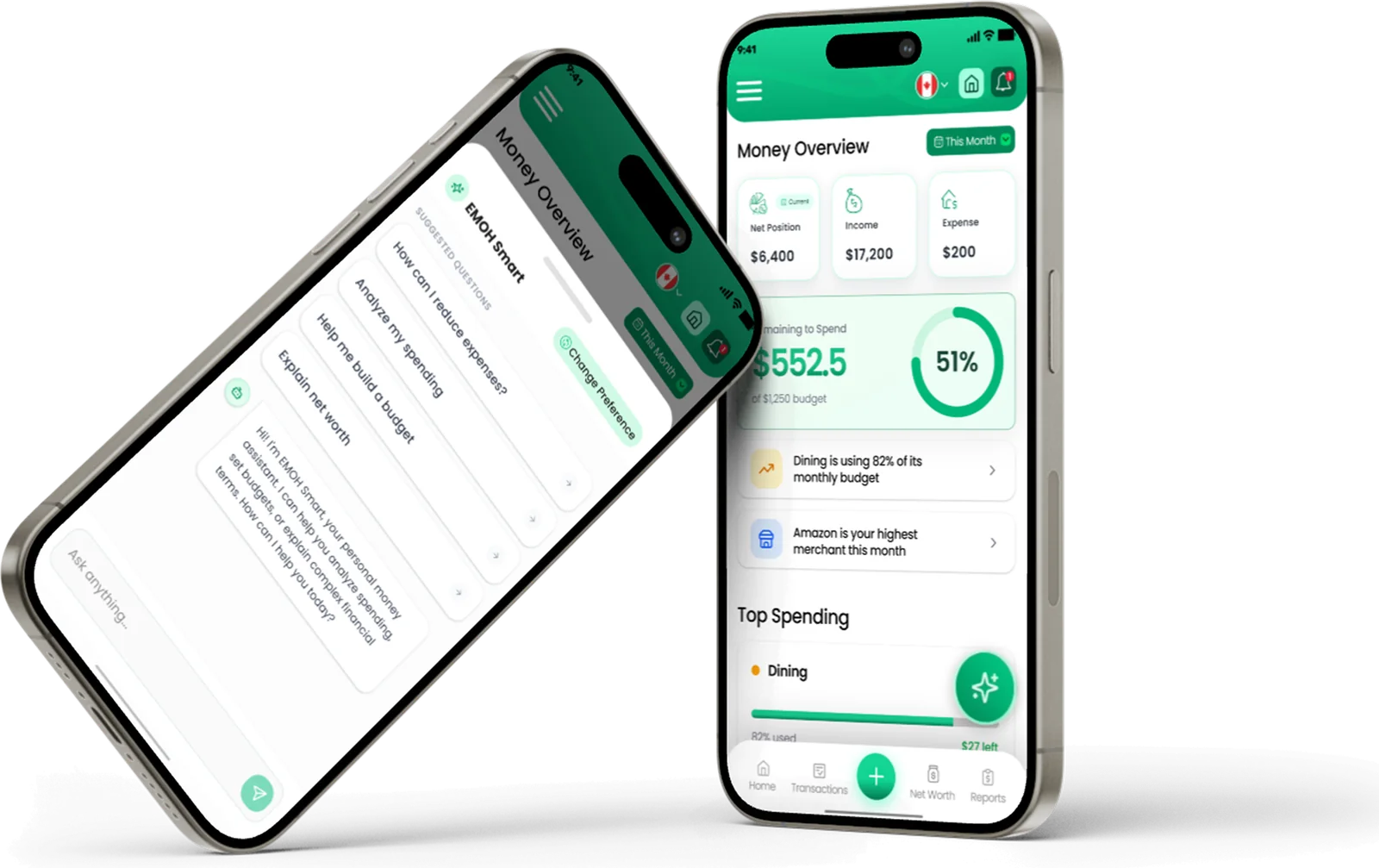
EMOH Pay tracks your spending, budgets and net worth on your phone and in the browser, always in sync. Free to start, made in Canada.
Get started free➜Budgeting App for Mac: frequently asked questions
Is there an EMOH Pay app for Mac?
There is no native Mac app. EMOH Pay's web app runs in Safari or any other Mac browser, and you can add it to your Dock so it opens like an app.
Will my Mac and iPhone stay in sync?
Yes. The web app and the iPhone app use the same account, so changes on one appear on the other.
Does Apple have its own budgeting app?
macOS does not include a dedicated budgeting app, but Numbers includes a personal budget template you can use for free.
Can I use a budgeting app on my Mac offline?
Native Mac apps can often work offline. Web apps, including EMOH Pay, need an internet connection.
Is budgeting in a browser safe?
It can be. Use an app that encrypts data and uses secure connections, keep your Mac updated and use a strong, unique password.
Sources and further reading
Related guides and tools
EMOH Pay's full web app: budgets, reports and net worth in the browser, always in sync with the iPhone and Android app. Made…
Budgeting App for Windows PCCompare budgeting software for PC: desktop programs, Excel and browser apps on Windows 11, plus how to pin EMOH Pay to your…
Download EMOH Pay — iOS, Android & WebDownload EMOH Pay free on the App Store or Google Play, or use the full web app in your browser. One synced account…
Best Budgeting App for iPhoneFind the best budgeting app for iPhone in 2026. Compare six iOS budget apps by style, pricing model and platforms, with…
Budgeting App vs Spreadsheet: Which Is Better in 2026?Spreadsheets are flexible but fragile: manual entry, broken formulas, no reminders, one device. EMOH Pay automates the…
EMOH Pay Features — Budgets, Tracking, AI & MoreAll EMOH Pay features: expense tracking, budgets, net worth, Ask AI, family sharing, GST/HST, multi-currency and more. Free…
Start free today
Free on iPhone, Android and the web. Upgrade to EMOH Pro anytime for bank sync and advanced AI.
Download for iOS➜ Get it on Android➜